
Help Centre
Everything you need to run BedBook.
Short, plain-language guides for busy owners. No jargon. If you get stuck, call us on 066 717 4067 or email hello@bedbook.ie.
Step 1
Getting started
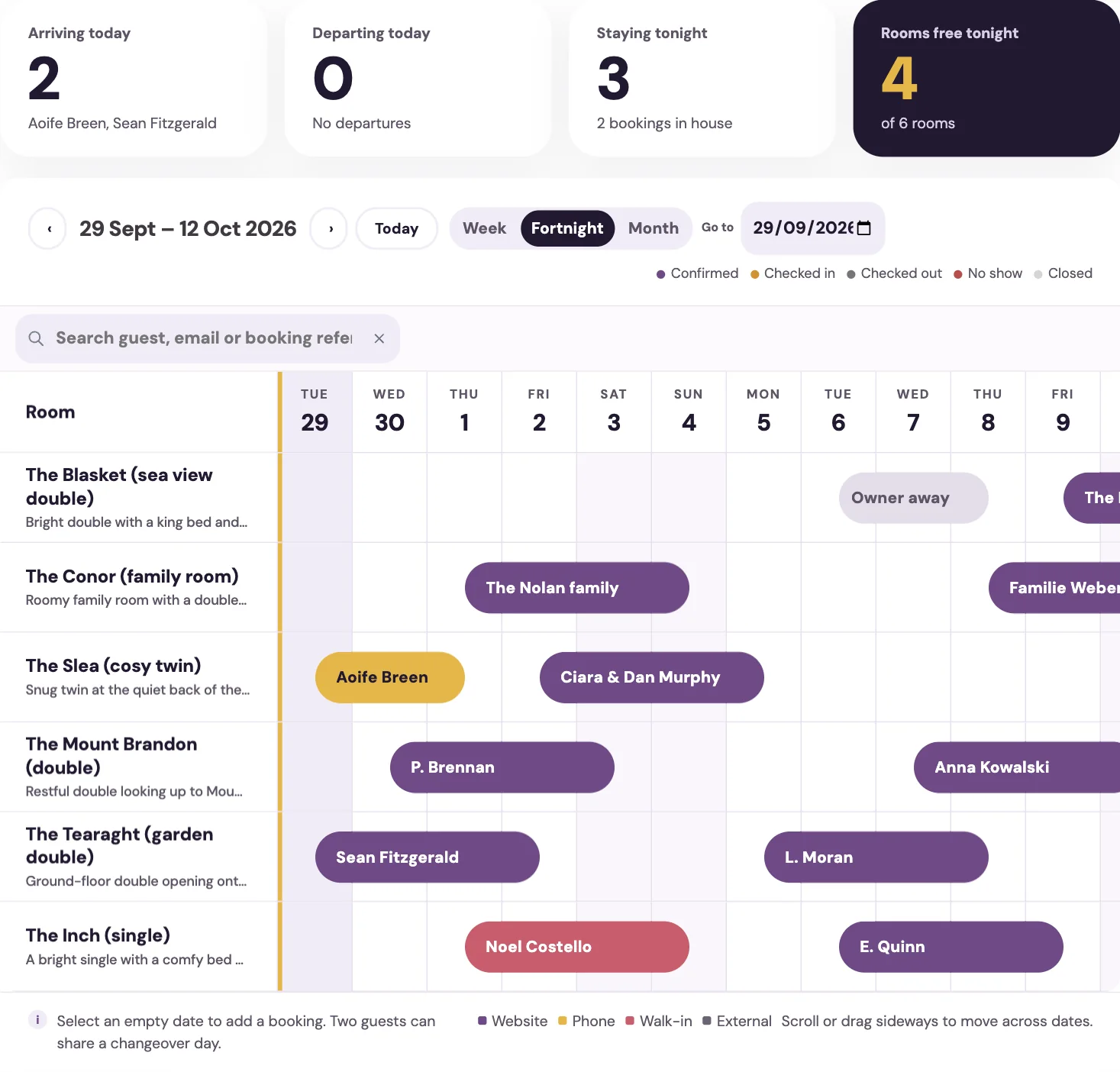
When your property is set up, you receive a login email. Go to your owner login, sign in with your email address and password, and you land on your diary. Everything is organised into a few tabs (down the side on a computer, along the bottom on your phone):
- Diary — a calendar of every room, so you can see who is staying and when at a glance.
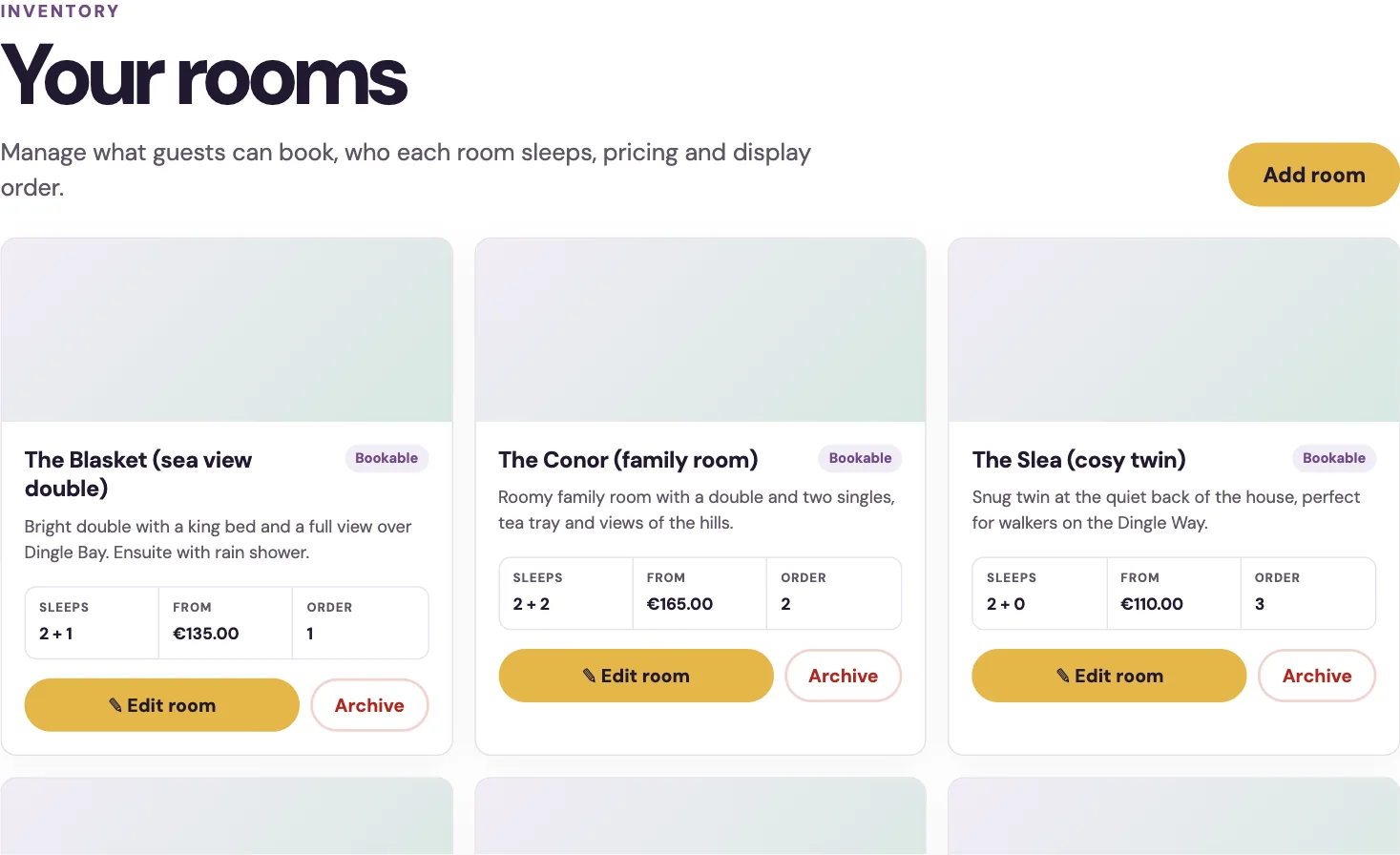
- Rooms — the rooms guests can book, who each one sleeps, and its price.
- Rates — nightly prices, seasonal changes and minimum-stay rules.
- Payments — connect card payments so you can take a deposit at the time of booking.
- Settings — your contact details, check-in times, directions and arrival notes.
First time in? Set up your rooms and rates, connect payments, then send yourself a test booking from your own website to see the whole thing work end to end.
Step 2
Setting up rooms & rates
Add a room
- Open the Rooms tab and click Add room.
- Give it a name guests will recognise (for example "The Blasket"), and a short description.
- Set how many adults and children it sleeps.
- Set the base nightly rate — the standard price for one night.
- Add a photo and a display order, then save. To change a room later, click Edit room on its card.
Set your rates
The base rate is your everyday price. On the Rates tab you can override specific dates for busy weekends or the high season, and set a minimum stay (for example two nights on bank holidays). BedBook works out the total for a stay automatically from the nights involved.
You are always in control of your prices. There is no BedBook commission — the price a guest pays is the price you set.
Step 3
Syncing Airbnb & Booking.com
Keep your other listing sites in step with BedBook so the same room is never sold twice. This uses a standard calendar link called iCal.
Send BedBook availability to an OTA
- On the Rooms tab, find the room under Calendar connections.
- Copy that room's BedBook export feed link.
- In Airbnb or Booking.com, open that listing's calendar and choose Import calendar.
- Paste the BedBook link. From now on, BedBook bookings block those dates on that site.
Bring an OTA's bookings into BedBook
- In Airbnb or Booking.com, copy that listing's Export / calendar link.
- Back in BedBook, next to the room, click Add import.
- Paste the link. BedBook checks it about every ten minutes and blocks any dates the OTA has booked.
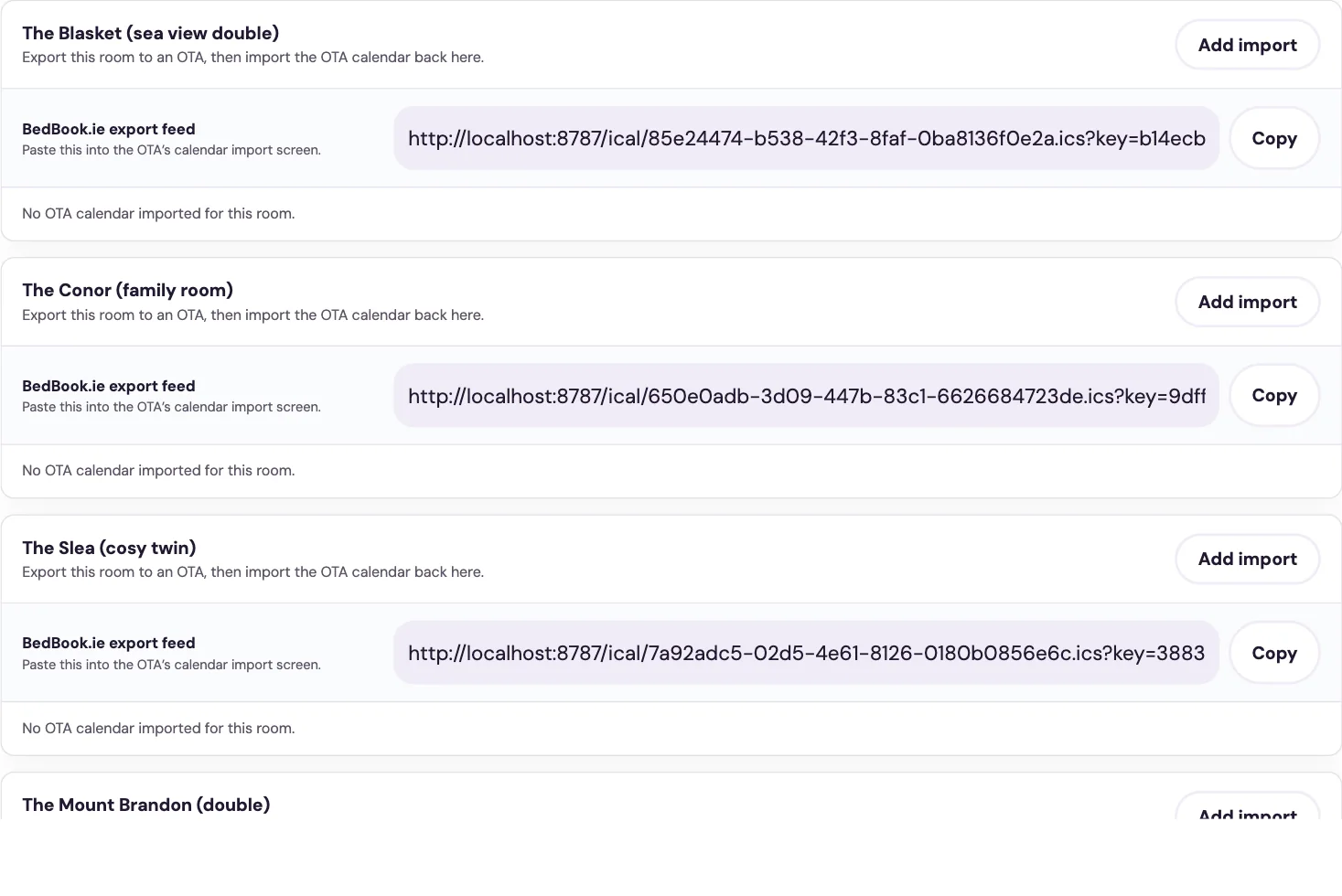
BedBook only ever shares "available" or "unavailable" — never a guest's name, contact details or notes.
Step 4
Taking payments
BedBook uses Stripe to take a card deposit when a guest books. Money goes straight to your own account, and the guest pays the balance on arrival.
- Open the Payments tab and click Connect with Stripe.
- Follow the Stripe screens to enter your business and bank details (this is Stripe's secure form, not ours).
- When it is finished, the Payments screen shows a green Stripe connected.
- Your money, direct. Deposits are paid into your own Stripe account, not held by BedBook.
- No card details stored by us. Stripe handles all card data — BedBook never sees or keeps it.
- Refunds and no-shows are handled from the booking itself in your diary.
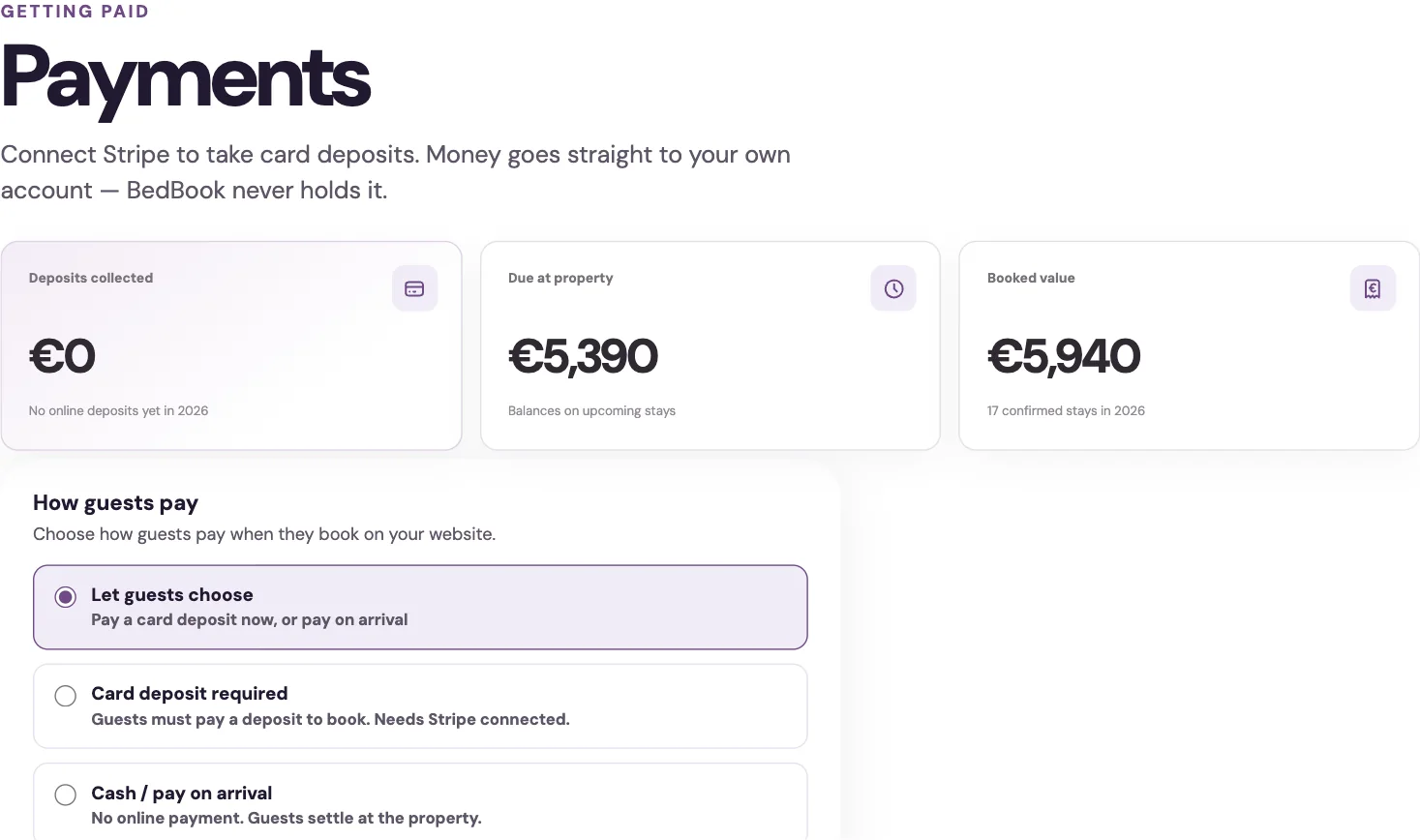
Stripe charges its own small card-processing fee per payment. That fee is separate from BedBook, which stays commission-free.
Step 5
Managing bookings day to day
Your diary is the home base. From a booking you can:
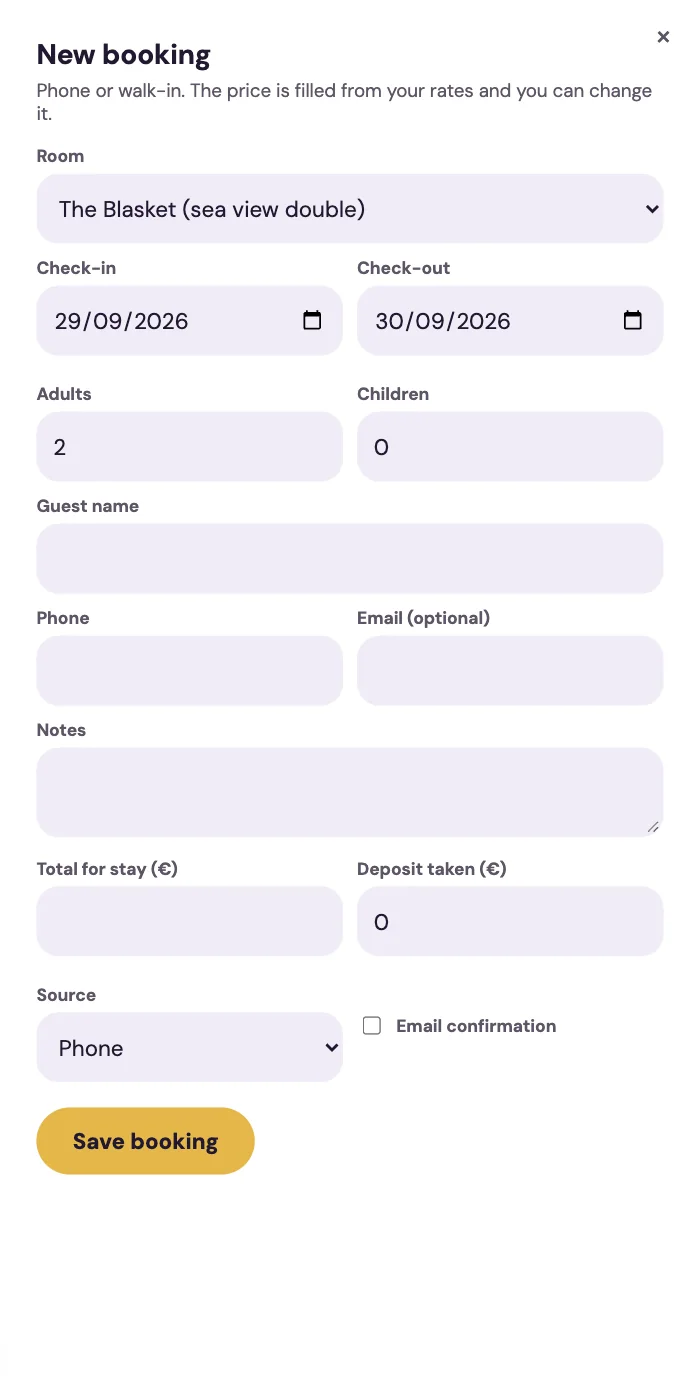
- Add a booking yourself — for a phone or walk-in guest, click a free date and enter their details.
- Check guests in and out — mark arrivals and departures as they happen.
- Edit, cancel or refund — change dates, cancel a stay, or issue a refund to the guest's card.
- Add notes — keep private notes on a booking or a returning guest.
- Close out dates — block a room for maintenance or a private stay.
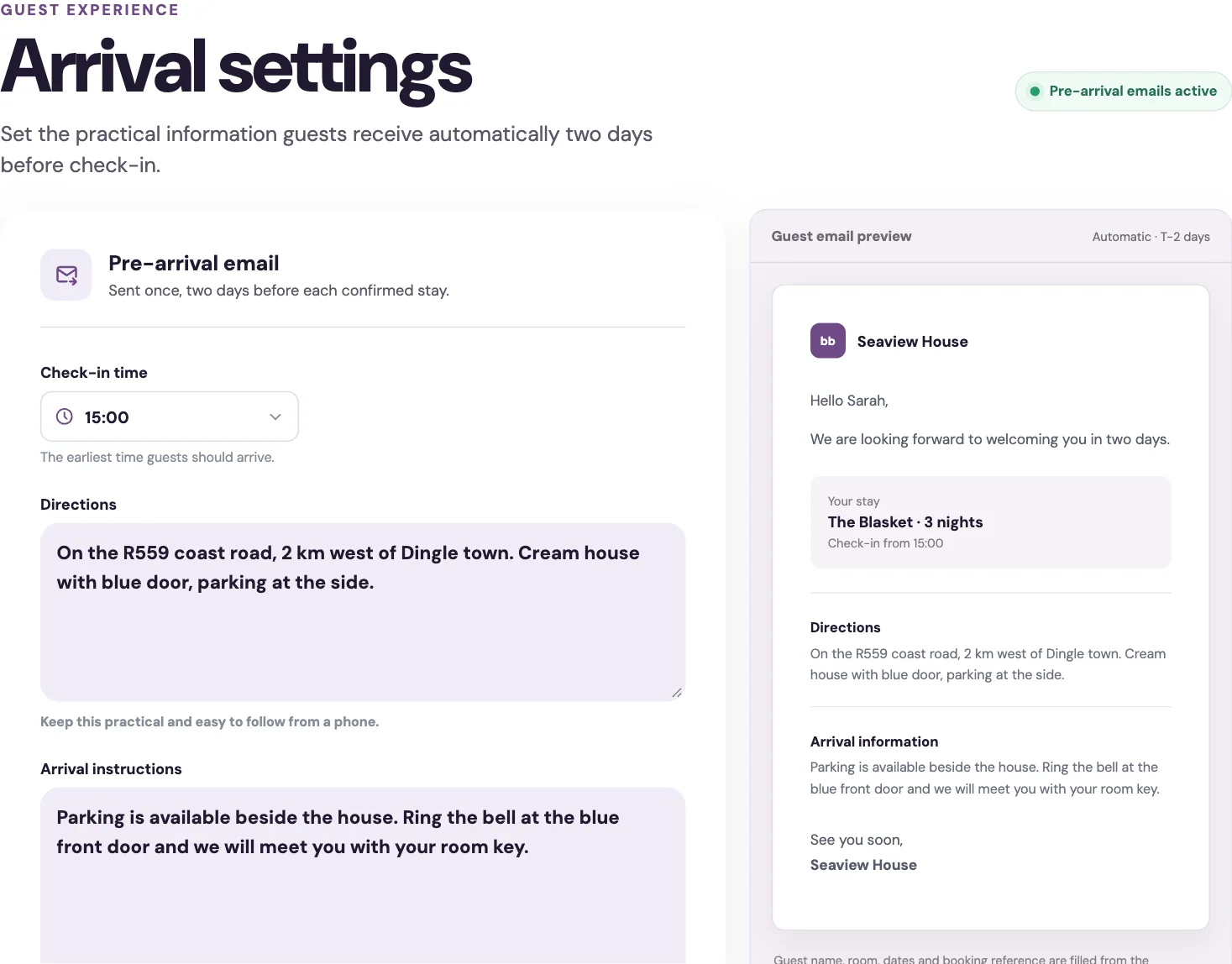
Guests are looked after automatically: a confirmation email goes out when they book, and a friendly pre-arrival email with your directions and check-in time is sent two days before they arrive.
Quick answers
Common questions
Do I need to be good with computers?
No. BedBook is built for owners who want everyday jobs done quickly. We set up your rooms, rates and calendars with you, and the main controls are kept clear and simple.
Can I still take bookings on Airbnb and Booking.com?
Yes. BedBook sits alongside them. Calendar sync (above) keeps your dates in step so the same room is not sold twice.
How fast is calendar sync?
Calendars refresh every few minutes rather than instantly, and BedBook re-checks once more before confirming a direct booking. On very busy dates, keep a little headroom on the OTAs as a safety net.
When do I get paid?
Deposits go straight to your own Stripe account at the time of booking, and payouts to your bank follow Stripe's normal schedule. The balance is paid by the guest on arrival.
Is my guests' information safe?
Yes. Card details are handled entirely by Stripe and never stored by us, and calendar sync only ever shares whether a room is available, never any guest information.